¶ Overview of Notifications and Alarms
Notifications are how the ImmoTrack Online service lets you know when something of interest has happened on your vehicle. When configured, Notifications appear on your phone much like any other mobile app notification.
Alarms are a type of Notification, but they use the term “Alarm” as a means of getting your attention when the notification is received.
There are various Notification types supported, and their use is at your discretion.
Note: All new Customers are provisioned with our recommended Notifications. This is to ensure that right out of the box, you receive the Notifications and Alarms which provide you the best security and visibility.
Based on data received from your GPS tracker module, ImmoTrack Online will determine if these events relate to one of the supported Notification types. You can configure the Notifications for many of these Events, where the Notification is sent to your Mobile Device (e.g. Apple iPhone, Android).
The types of Events which you can use to send you Notifications is not unlimited, but is thorough and should meet your needs. As always, reach out to us at [email protected] if there is a Notification you would like but cannot find in the app.
¶ General Guidance on Notifications
Not all Notifications should be used, as some of them may trigger so frequently that it reduces the usefulness, and likely cause you to ignore notifications. The analogy here is the “boy who cried wolf” fable; make sure that when your mobile app tells you something about your vehicle, it is worthy of your attention and not just noise.
| Notification | Recommendation | Notes |
|---|---|---|
| Command Result | Enabled for All Vehicles | Any commands you send to your vehicles which result in a response will need this setting enabled. Specifically, commands to control the immobiliser. |
| Queued Command Sent | Enabled for All Vehicles |
When you send a command to your vehicle, if your GPS tracker is currently not connected to our server (due to mobile network issues), the command will be queued and sent when the device is next online.
|
| Ignition On | Enabled as needed |
Whilst a “noisy” notification which can be distracting, the Ignition ON can be a useful notification for if your vehicle is ever turned on unexpectedly. It can often be the first indication of a theft attempt, as the Ignition On detection will still work even if your vehicle is disabled (immobilised). We recommend enabling the Ignition ON notification for:
|
| Alarm(s) |
Enabled for All Vehicles for the following Alarms:
|
The listed alarms are recommended as they work on all GPS tracker models sold by ImmoTrack Online. |
|
Enabled as needed for the following Alarms:
|
These can be enabled on a per-vehicle basis if these changes are important for any form of safety or policy monitoring. The following settings are applied to all ImmoTrack Online GPS Trackers for these alarms, with all measured in meters per second squared (m/s²):
|
|
|
Towing Alarm Enabled on installations. with reliable ignition detection |
We do not enable the Towing Alarm on the ImmoTrack GO tracker, as the Towing alarm is triggered by movement when the Ignition is turned off. Only our ImmoTrack Essentials and ImmoTrack Secure systems have consistent and reliable Ignition Detection.
|
|
| Unauthorised Access Alarm Enabled based on dealer installation. |
This alarm can be enabled based on what features the dealer installed. These can include:
|
|
| Fall Down Alarm | Enabled for motorcyles, set to 50 degrees angle. | |
| Geofence Exited | Enabled as needed | Coupled with any Geofences you have assigned to your vehicle(s), this is a useful notification if your vehicle leaves one of the assigned geofences unexpectedly. |
| Geofence Entered | Enabled as needed |
Generally, this is not considered an alert, but is useful as a notification. Common scenarios are:
Depending on travel habits, enabling this notification may cause excessive pings from our mobile app. |
| Status Online | Not Enabled |
The “Status Online” and “Status Offline” messages refer only to whether your GPS tracker is actively and currently communicating with our servers. When driving, your GPS tracker may be forced to connect and disconnect as it moves between cell towers. When parked, your GPS tracker may be forced to disconnect if it is in a high mobile congestion or low signal area. |
| Status Offline | ||
| Status Unknown | Not Enabled |
The “Status Unknown” message refers to when the ImmoTrack Online server last saw the tracker as Online and then it stopped communicating without disconnecting cleanly. This status can occur in various scenarios:
|
| Device Inactive | Enabled as needed |
Your GPS tracker will be considered as “inactive” if it has not checked in for a few days. Depending on your vehicle, this may be a very useful notification. Our configuration is to generate this notification once per day after the initial notification, to let you know that the device is still not communicating. |
| Device Moving | Enabled as needed |
Generally, this is not considered an alert, but may be useful as a notification for some vehicles.
Depending on travel habits, enabling this notification may cause excessive pings from our mobile app. |
| Device Stopped | ||
| Speed limit exceeded | Enabled as needed (contact ImmoTrack to set up) |
Currently, customers cannot set the speed limit in our web portal for vehicles and this must be set on your behalf for the speed value. If you wish to enable this setting, reach out to [email protected] for configuration of the speed value. When enabled, if the speed is detected as exceeding the defined value, you will receive a notification. We urge caution on using this setting, as it can be considered a privacy invasion depending on who you are monitoring and why. |
| Maintenance Required | Enabled as needed | Based on your defined maintenance intervals for your vehicles (based on distance traveled/odometer), you will receive a notification when the distance interval has been reached. |
| Ignition off | Not Enabled | We do not recommend enabling the “Ignition OFF” Notification as it can be very noisy and does not provide visibility of any security events. |
¶ Configuring Notifications and Alarms
For this guide we focus on the most common Notifications that are requested. The process is the same for most Event types, so we cover the common process, and then discuss the differences for certain types of Events.
Unless you have multiple vehicles, we recommend selecting Yes for the “All Vehicles” option when creating a notification!
¶ Creating the Notification
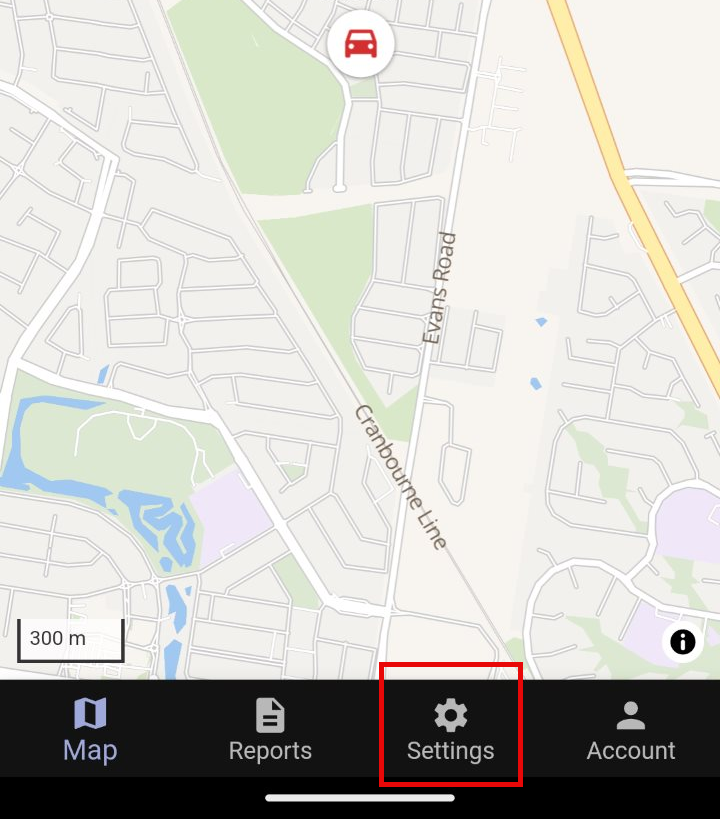
From the Map screen in your mobile app, click the Settings button at the bottom of the screen.
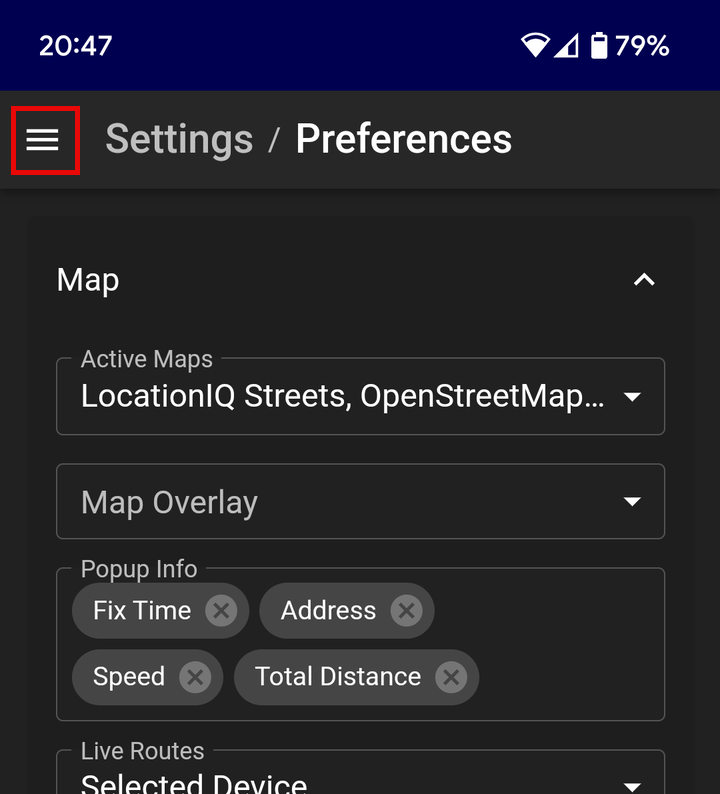
This will take you to the Settings / Preferences page. Click the three horizontal lines at the top left to bring up the entire Settings menu.
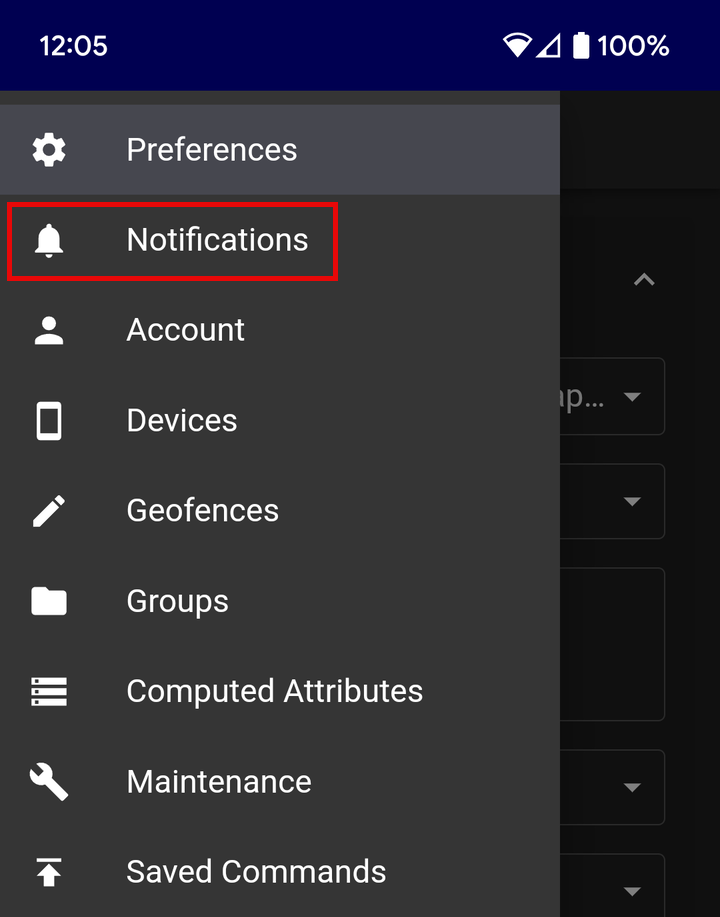
From the menu that appears, select Notifications.
You are now in the Notifications page, and can create new Notifications or edit an existing Notification. The screen shows existing Notifications and a Plus symbol (+) for adding new Notifications.
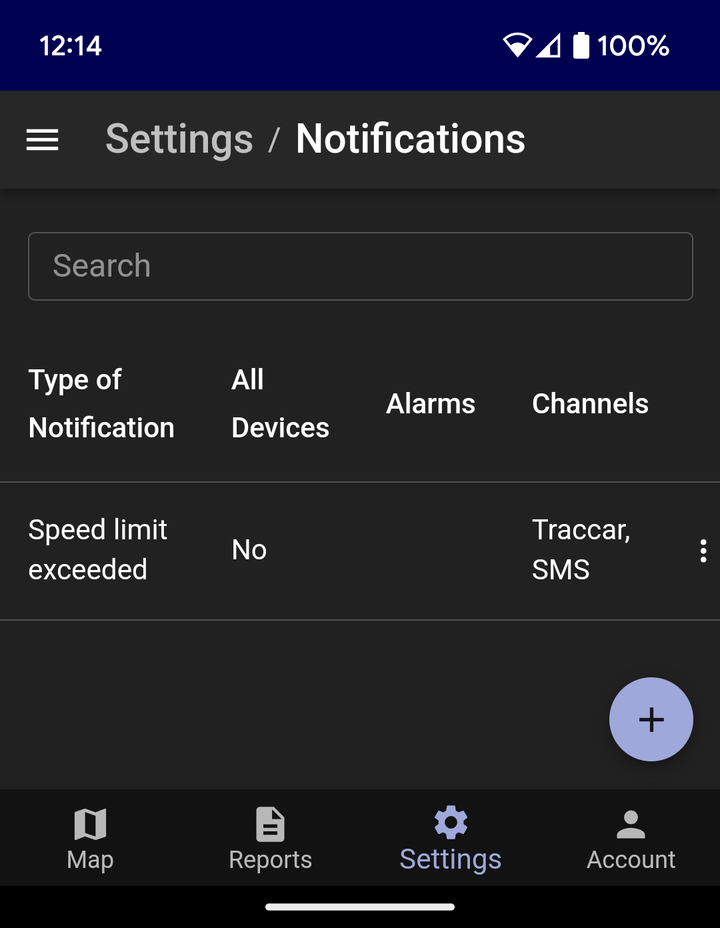
Click on the Plus Symbol to create a new Notification.
¶ Creating the Notification
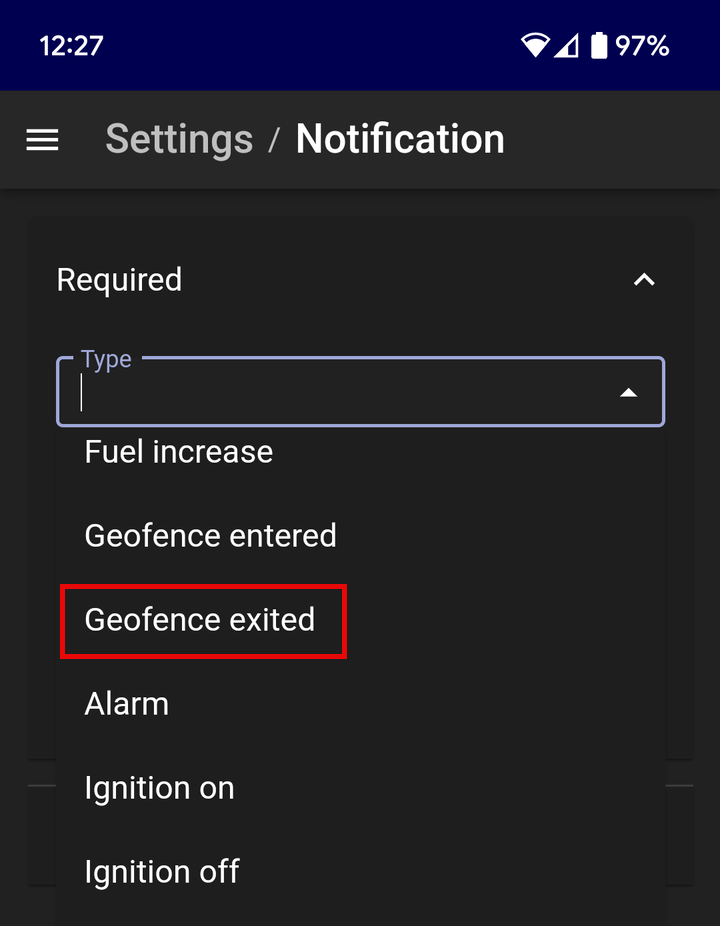
We will use the “Geofence Exited” Event type as our example here. After clicking on the Plus symbol you will be shown the screen for creating a new Notification.
Click on the Event “Type” field and, from the long list of options available, scroll down and select “Geofence exited”. Note that you can only select one Event type in each notification, so if you want Notifications for “Geofence exited” and “Geofence entered”, these need to be configured as two separate notifications.
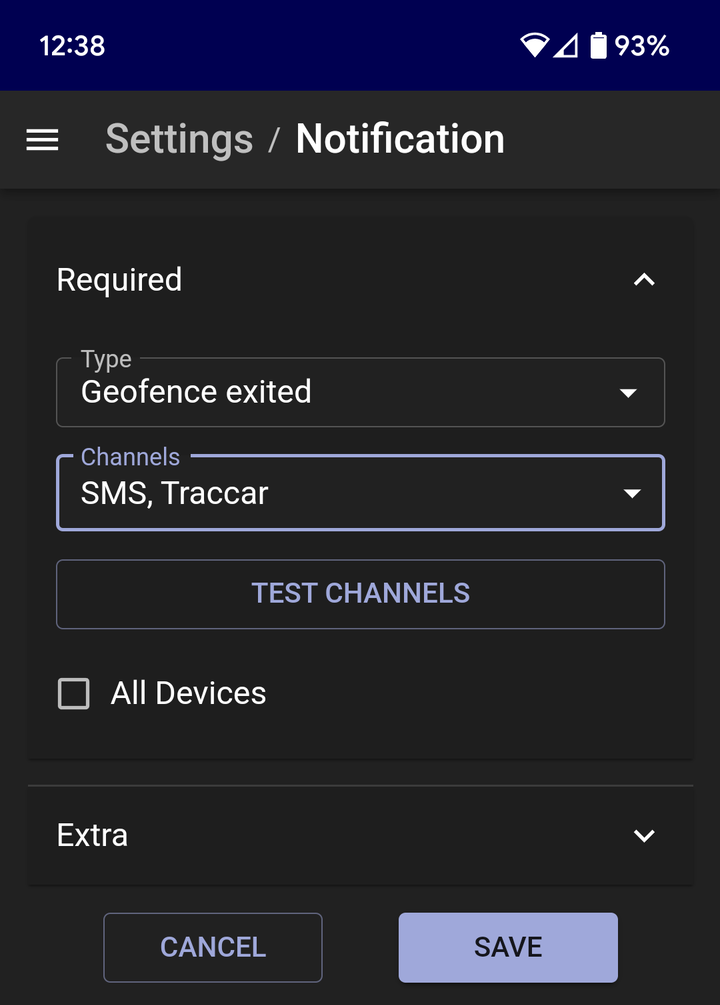
Next, select the Channels (methods) which will be used to send the Notification to you. You must select the ImmoTrack GPS channel.
As a last option, you may choose to automatically enable the Notification for all Vehicles. This will implicitly assign the Notification to all Vehicles in your account and can be used to save time if you have many Vehicles that need the Notification assigned.
You do not need to edit the Extra settings, and can click Save to complete creation of the Notification.
¶ Assignment of Notifications
For Notifications to work for events occuring with a Vehicle, two things must be in effect:
- The Notification must be assigned to the Vehicle via the Connections settings for the Vehicle
- The Notification type must be valid for that Vehicle
¶ Assigning Notifications to Vehicles
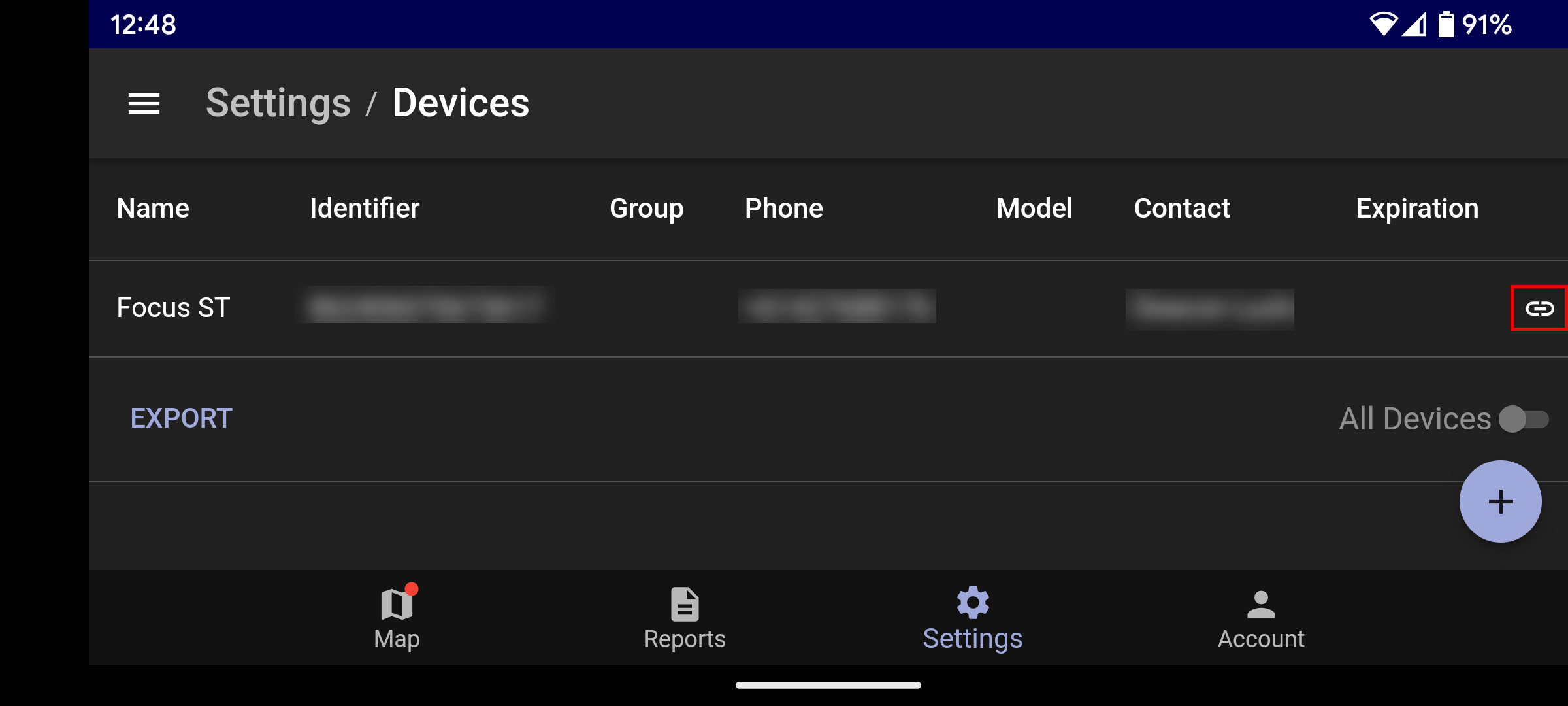
Unless you selected the “All Vehicles” option when creating a Notification, you will need to assign the Notification to your Vehicles. This is performed via the Connections menu when viewing a Vehicle The Connections menu in the web portal or the Mobile App is always accessed via the Connections option. To edit the Connections for aVehicle you must access the Settings menu and then select Vehicles. Once the Vehicle list appears, you must scroll to the right of the image (or rotate your phone to see it) and then click the Connections icon.
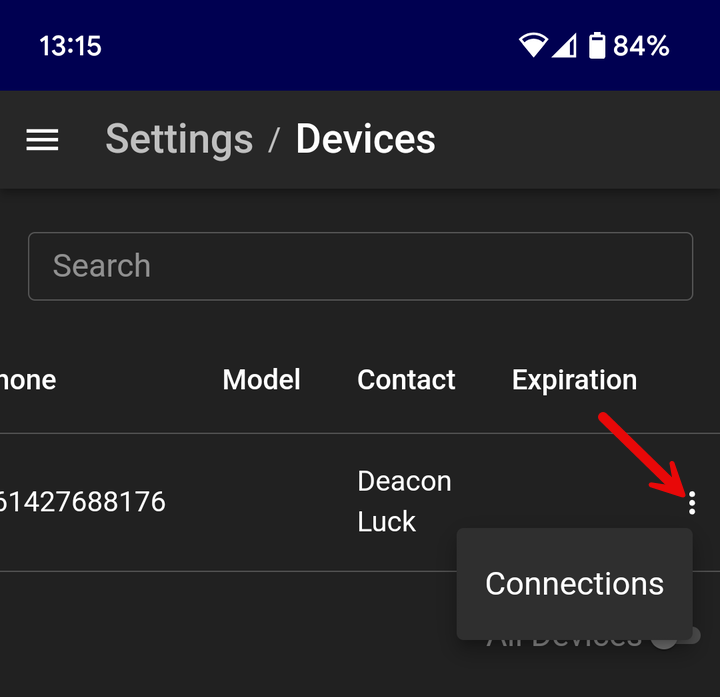
If you cannot see the Connections icon, there may only be three vertical dots at the right of the screen you need to click first, so that it shows you the Connections menu option.
Once you have clicked on the Connections icon, you will be shown the list of Connections options for that Vehicle Click on the Notifications field.
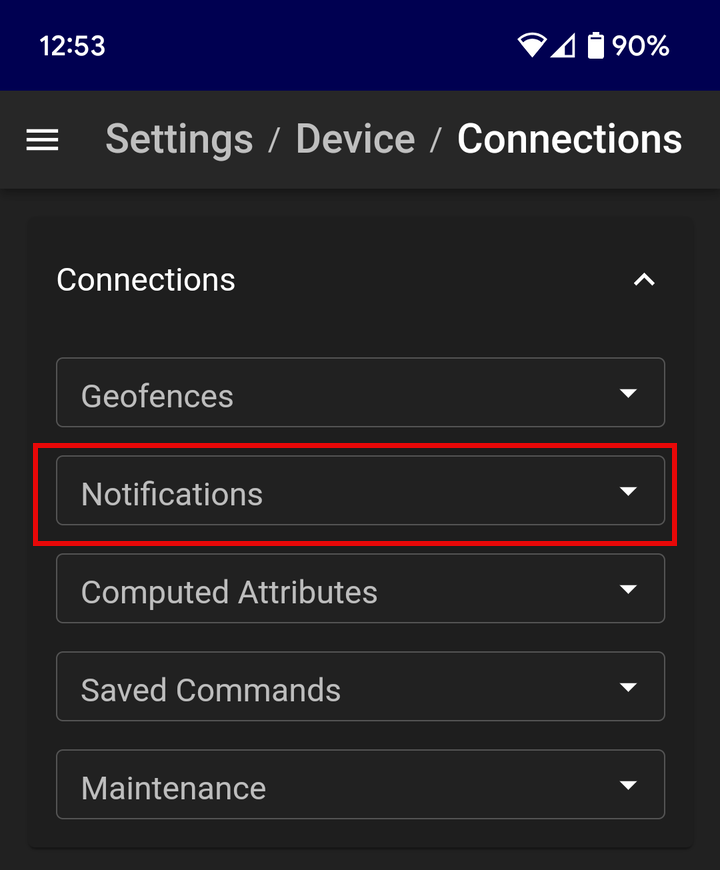
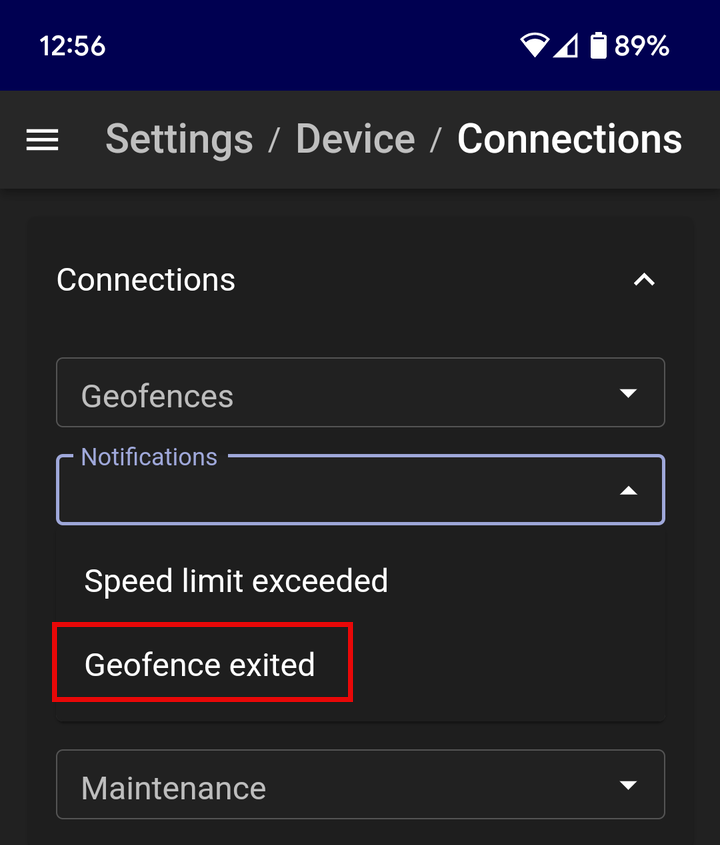
You will be presented with a list of all possible Notifications that you can assign to the Vehicle. In this example we will select the “Geofence exited” Notification.
Once we have selected it, this Notification will appear as assigned to the Vehicle.
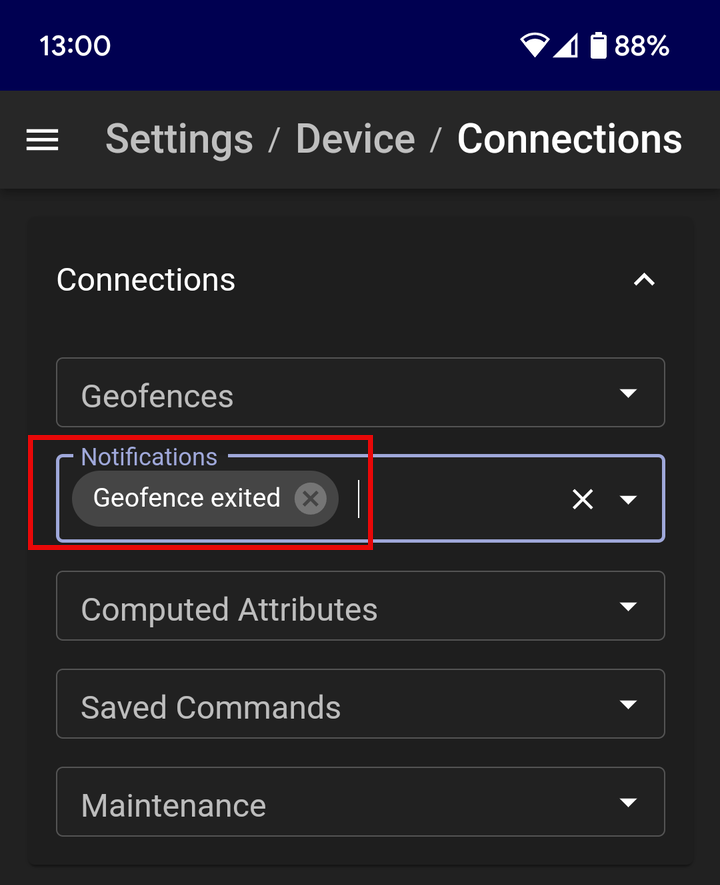
No further action is necessary; any changes to the “Connections” settings for a Vehicle are automatically applied.
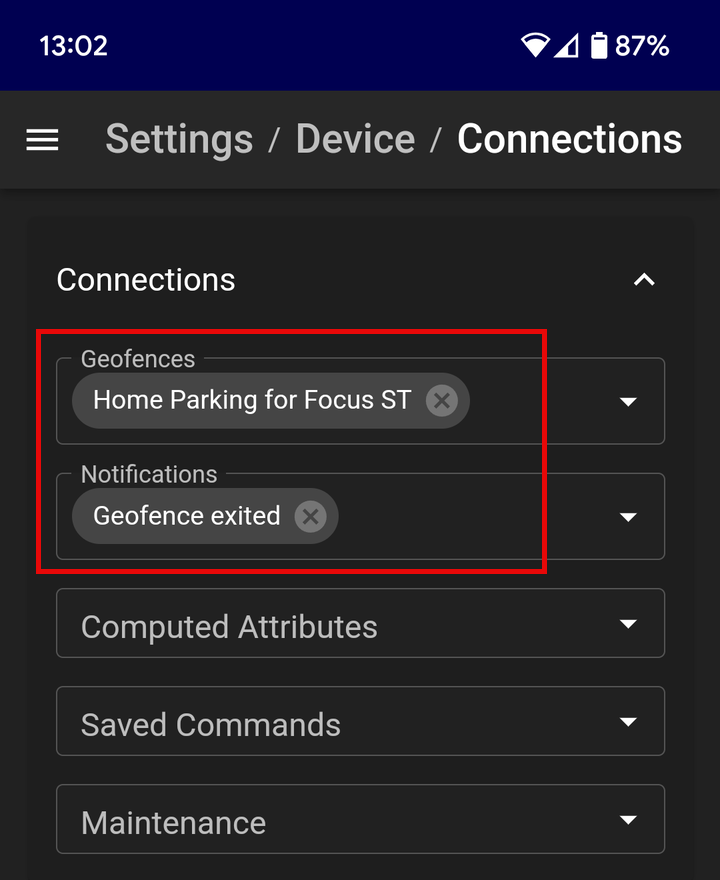
If we also click on the “Geofences field” we can see that this Vehicle has both the Notification assigned for exiting a Geofence, and also has at least one Geofence assigned to it as well. As a result of these two settings, you will now receive Notifications when this Vehicle leaves the assigned Geofence.
¶ Validity of a Notification for a Vehicle
The best example here of whether a Notification is valid for a Vehicle is the “Geofence Entered” or “Geofence Exited” Event type. You may have assigned a Notification for one of these Event types to the Vehicle, but you will only be notified of these events if the Vehicle has a Geofence assigned to it.
For example, if we have Notifications enabled for our car for exiting or entering Geofences, but there are no Geofences assigned to that Vehicle, then there will not be any Notifications generated for entering/exiting a Geofence.
¶ Alarm Triggering Details
The following table describes what the triggers are for each of the ImmoTrack Online alarms.
| Alarm | Trigger Scenario | Notes |
|---|---|---|
| Voltage Drop | The vehicle's battery voltage drops below 10 volts for more than 1 second |
If this alarm appears while starting your engine, the problem can be:
If this alarm occurs while driving, it usually indicates the vehicle alternator has failed. |
| Unauthorised Movement | Vehicle moves 150 metres with engine not running |
This is the “Auto Geofence” alarm. Whenever you park your vehicle, an automatic geofence is created. If the vehicle moves outside of this radius while the engine is not running, the alarm will trigger.
|
| Unauthorised Access | Vehicle security alarm triggers or a door is opened while the vehicle is immobilised | Custom per-install. If your dealer did not integrate with an alarm or door, this will never trigger. |
| Power Cut | There is no power to the GPS tracker from the car's battery | Generally this means the vehicle battery has been disconnected. It can also mean the GPS tracker has been discovered and disconnected. |
| Low Battery | The GPS tracker internal battery is about to go flat. |
This is the “last gasp” warning for if your GPS tracker is about to go offline, and will usually occur hours or days after the “Power Cut” alarm has triggered. GPS tracker battery life depends on the tracker model. |
| Jamming | The GPS tracker has detected GPS or 4G jamming. |
Jamming alarms can be legitimate indicators of theft attempts, or can be an indication of extreme electrical noise inside your vehicle. If your vehicle has consistent jamming alarms, it is likely noise and your tracker may just need to be relocated to a different location in the vehicle. However, if GPS jamming appears after many weeks or months of trouble-free usage, it can be an indicator of a theft attempt. |
| Accident | The GPS tracker has detected a sudden shock, indicative of a crash. | Crash alarms generally indicate severe impact, but can be caused by hitting very large potholes. |
| Towing | The GPS tracker has detected that the vehicle has been lifted and tilted while the ignition is off. | Towing alarms are only available on GPS trackers with hardwired Ignition detection (ImmoTrack Essentials and ImmoTrack Secure). |
| Tampering | The GPS tracker has detected it is being tampered with. | This alarm is restricted to the ImmoTrack MAG GPS tracker, and will trigger when it is removed from its magnetic mount. |