¶ Using your ImmoTrack Online Immobilizer
The ImmoTrack Online vehicle immobiliser is a flexible system which grants you full control over how and when your vehicle is immobilised. Ultimately, how you choose to use our Immobiliser on your vehicle is at your total discretion.
| Preference | What To Do | Usage Notes and Caveats |
|---|---|---|
| I want it immobilised any time it's not being driven | Turn on the Automatic Immobiliser. Your vehicle well self-immobilise 60 seconds after the ignition is switched off and the vehicle is not moving. |
Every time you drive, you must Activate the Vehicle before attempting to start the engine.
As owners and operators of ImmoTrack Online, even we understand that Immobiliser Fatigue can be a real problem. Some days you just want to get in your car and go, and the extra step of activating your car can be frustrating given the extra time it can take. When this happens, we recommend considering turning off the Automatic Immobiliser to give yourself a break, knowing that you can always remotely disable your parked vehicle whenever you become concerned, and can always safely disable your vehicle if it is ever stolen.
|
| I want to decide when to immobilise it | Use your Mobile App to immobilise the vehicle when desired | Manually controlling your immobiliser means you have full control over when the vehicle is or is not immobilised. Note however, that if you forget that you have disabled the vehicle, it can be initially confusing why your vehicle will not start. This can be frustrating, and ultimately it comes down to experience and knowledge of your immobiliser. |
| I only want to use ImmoTrack to disable and recover my vehicle if it is stolen | Enable Notifications in your Mobile App for vehicle Ignition and usage, and respond to theft detections by using the “Disable Stolen Vehicle” command. |
In this scenario, you are essentially using our solution as a “Secondary Immobiliser”, relying mostly on your vehicle's existing or other protections against theft which may include a CANBus immobiliser. This is a perfectly normal and acceptable means of using your ImmoTrack Online immobiliser, and you should not feel bad if you choose to use our solution this way. It is your vehicle, and your decision. |
¶ Controlling the Automatic Immobiliser
You may, at your discretion, configure your ImmoTrack Online immobiliser to automatically disable the vehicle after 60 seconds of being parked and the ignition turned off. You have full control over this feature, and may turn it on or off at any time that suits your vehicle usage habits.
As owners and operators of ImmoTrack Online, even we sometimes forget that our vehicles are set to automatically immobilise when parked. If you find the feature frustrating on days when you are regularly entering and exiting the vehicle, you should feel comfortable in turning this feature off and relying on your ability to disable the vehicle after parking it via the mobile app, and if it is stolen via using our “Disable Stolen Vehicle" feature.
¶ Enabling Automatic Immobilisation
Enabling the Automatic Immobilisation feature can be safely performed using the ImmoTrack GPS mobile app at any time. After enabling this feature, you must turn the ignition ON and then OFF again at least once to ensure the immobiliser status is enforced.
| Step | Task | Notes/Examples |
|---|---|---|
| 1 | Turn on the Automatic Immobiliser feature. |

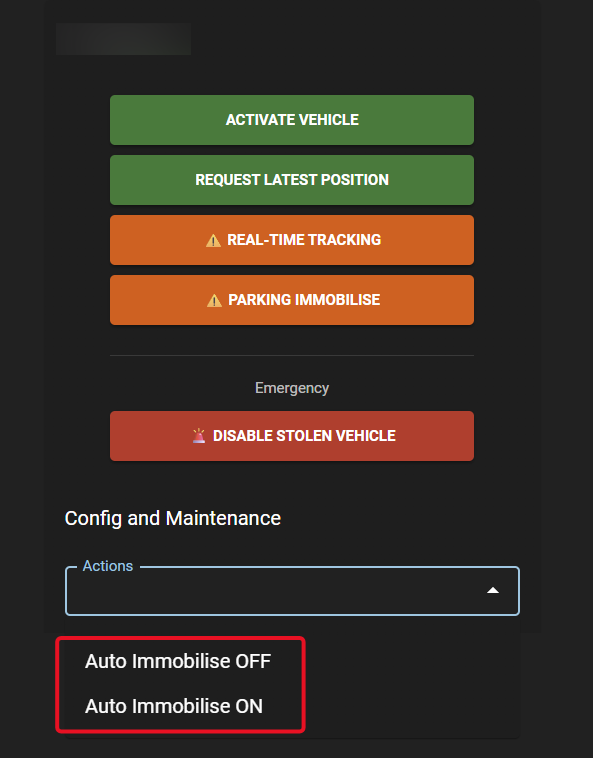
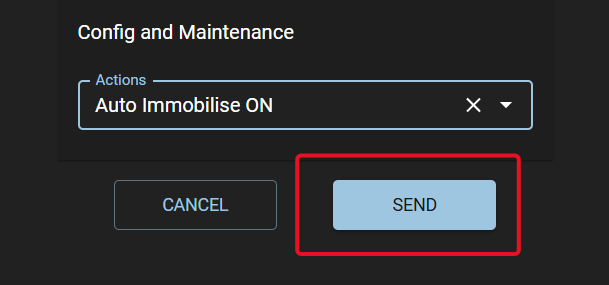 After sending the command, you will receive a notification on your phone when the GPS tracker receives and executes the command. This notification will appear similar to the example below: 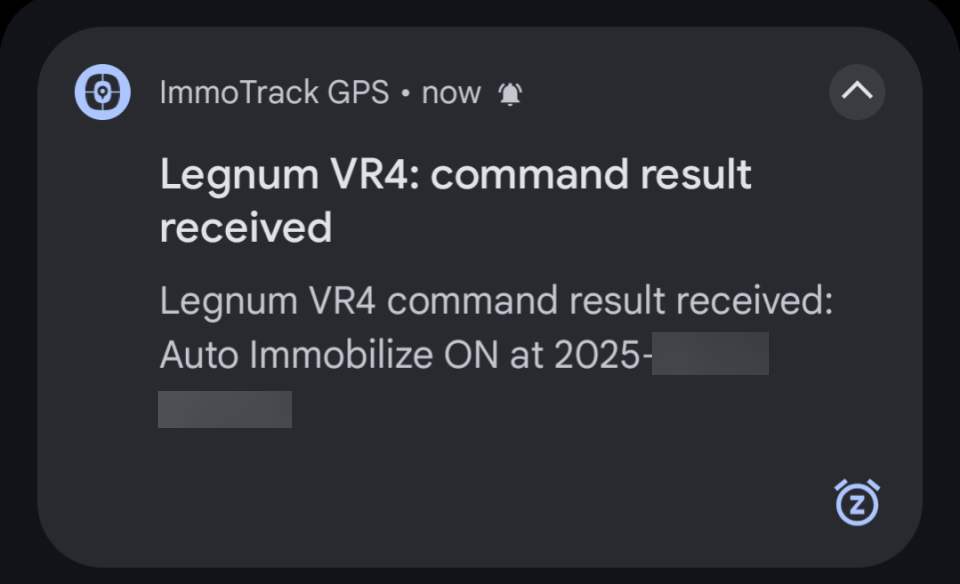
|
| 2 | Turn the Ignition ON and then OFF again. |
Go to your vehicle, start the engine and then turn the engine off. This ensures that the automatic immobiliser will take effect within 60 seconds.
|
¶ Disabling Automatic Immobilisation
Disabling the Automatic Immobilisation feature can be safely performed using the ImmoTrack GPS mobile app at any time.
| Step | Task | Notes/Examples |
|---|---|---|
| 1 | Turn off the Automatic Immobiliser feature. |
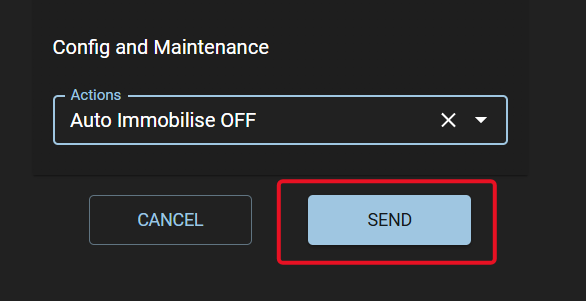
After sending the command, you will receive a notification on your phone when the GPS tracker receives and executes the command. This notification will appear similar to the example below: 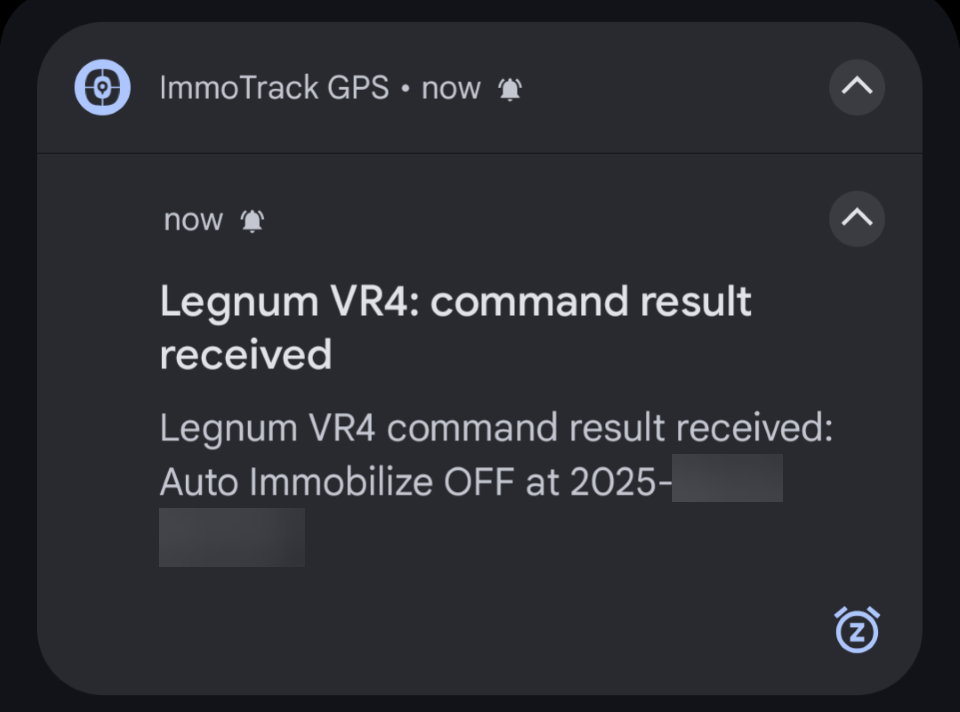
|
¶ Manual Immobiliser Control
¶ Parking Immobilization
To manually Disable your vehicle for parking:
| Step | Task | Notes/Examples |
|---|---|---|
| 1 | Turn off your Ignition | Ensure your ignition is turned off before attempting to Disable the vehicle. Our Parking immobiliser will otherwise queue the command and wait for the ignition to be turned off. |
| 2 | Disable your vehicle using the Mobile App |
From the Command page, click on Parking Immobilise. 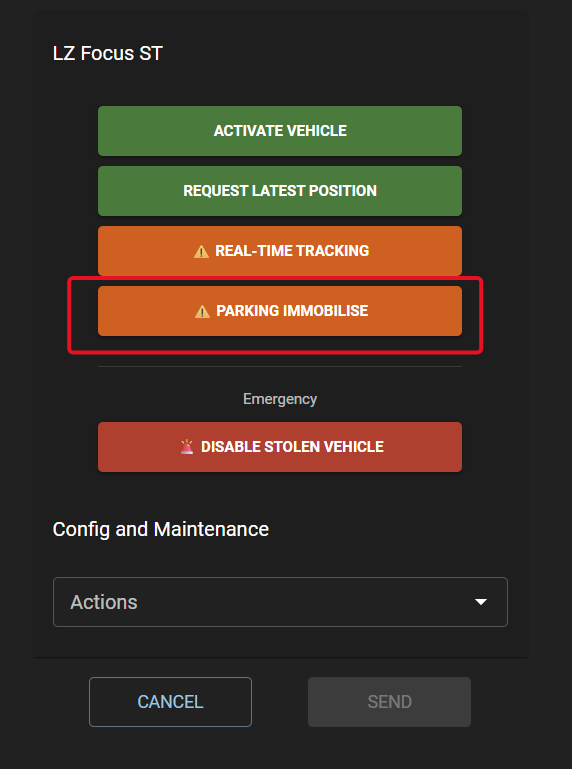
You will be asked to confirm that you wish to do this. If so, click the Confirm text. 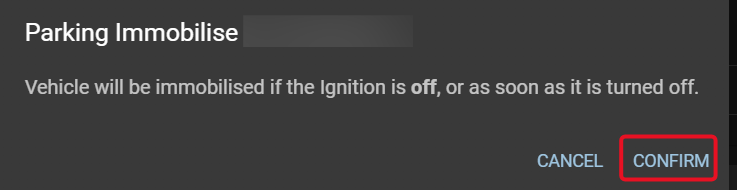
After sending the command, you will receive a notification on your phone when the GPS tracker receives and executes the command. This notification will appear similar to the example below: 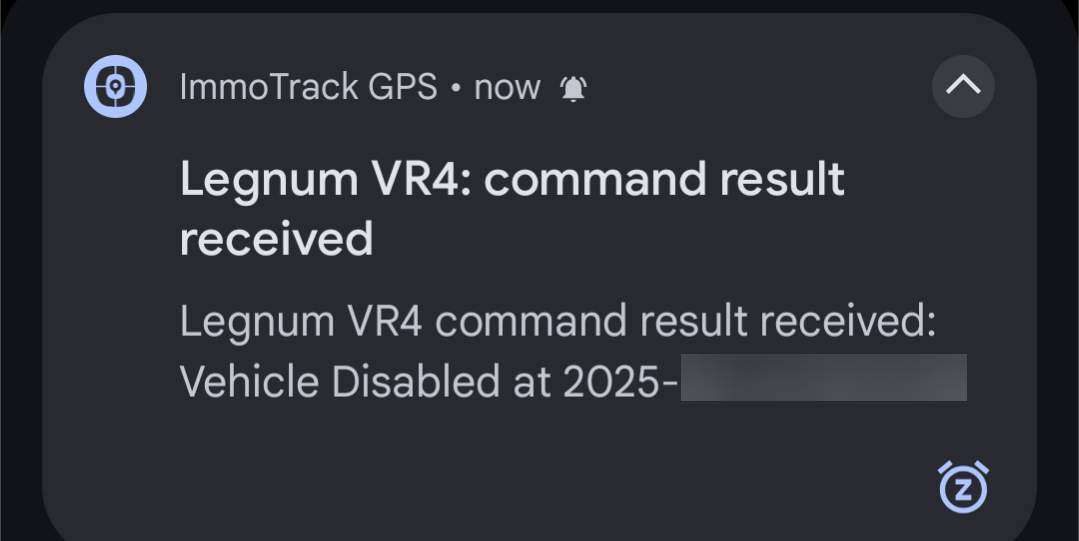 |
¶ Disabling a Stolen Vehicle
If your vehicle has been stolen, Disabling the vehicle must use our Safe Engine Cut Off (SECO) functionality of our Teltonika GPS trackers to cut the engine only when the vehicle has stopped moving.
ImmoTrack requests that all customers only use the Disable Stolen Vehicle command on the advice of Law Enforcement.
Disabling vehicles at speed is not supported or permitted due to the safety risk to your vehicle, 3rd parties, or the vehicle occupants.
To initiate SECO on a stolen vehicle:
| Step | Task | Notes/Examples |
|---|---|---|
| 1 | Carefully choose when to immobilize your vehicle |
Using the Mobile App, monitor the location of your vehicle and carefully decide if using the SECO function is safe and appropriate. We ask that you consider the following and understand that you are responsible for the decision and ramifications of Disabling your vehicle:
If you assess the risk as too high, we recommand that you wait to Disable the vehicle until it is in a location where the risk to your vehicle, other vehicles, or the risk to human safety is low. |
| 2 | Disable your vehicle using the Mobile App |
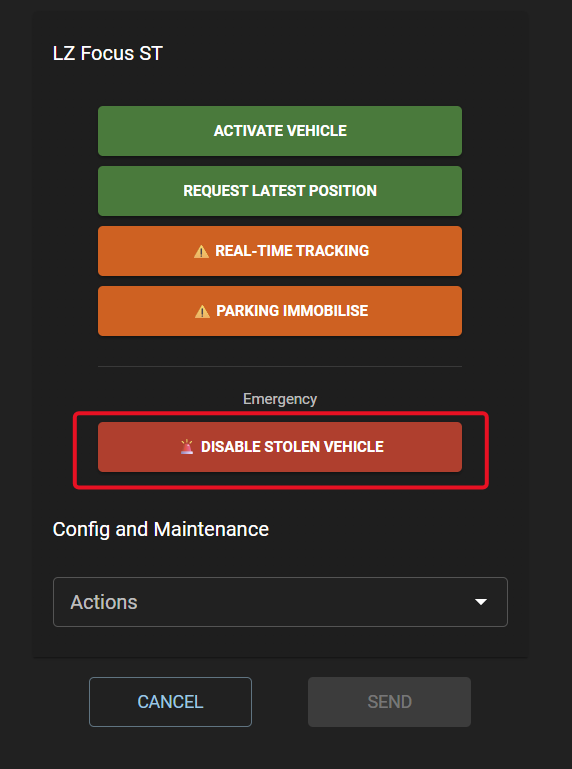
You will be asked to confirm that you wish to do this. If so, click the Confirm text. 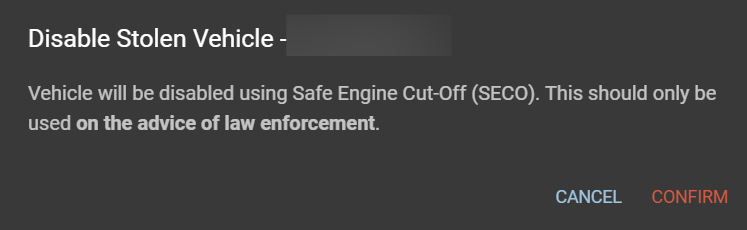
|
| 3 | Note the status message |
When you command the vehicle to be disabled, you will receive one of the following two notifications:
|
| 4 | Check the vehicle status |
Using the Mobile App, tap on your vehicle name to bring up the Popup Info window. If the immobilization has been successful, the Vehicle Status will be “Disabled”. 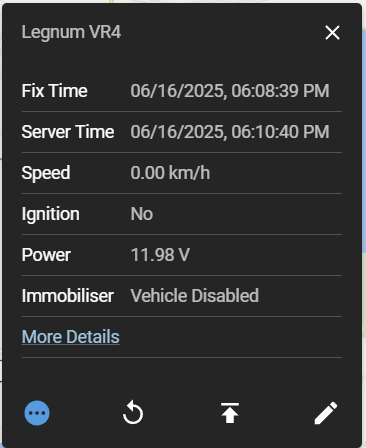
|
| 3 | Retrieve your Vehicle |
|
¶ Immobilizer Status
When you command your immobilizer, the GPS tracker will respond to let you know the results. The possible results and their meaning are described here:
| Result | Meaning |
|---|---|
| Vehicle Activated | The GPS tracker has activated the vehicle |
| Vehicle Disabled | The GPS tracker has disabled the vehicle |
| SECO Commanded, waiting for safe speed | The GPS tracker has received your command, and is waiting for the vehicle to be stationary before disabling the vehicle |
| Vehicle Disable Failed - No GPS Fix |
The GPS tracker has received your command to disable the vehicle, but does not know how fast it is moving because it has no location “fix" from the GPS satellites. This can happen in the following scenarios:
|
| Vehicle Disable Failed - Ignition is On | The GPS tracker has received your “Parking Immobilise” command, but has detected that the Ignition is on. For safety, we reject attempts to immoblise vehicles using this command if the ignition is turned on. |